Skip to content
Prairie DigitalPrairie Digital

Review Desk

Google review replies, drafted in your brand voice.

AI drafts for Google Business Profile. Approve-first is the default. Five-star thanks can post in one click or auto-post — off unless you turn it on. One- to three-star reviews always wait for a person.

Review Desk — open the live demo

Add-on · Live demo

Review Desk

AI drafts for Google Business Profile. Approve-first is the default. Five-star thanks can post in one click or auto-post — off unless you turn it on. One- to three-star reviews always wait for a person.

Custom quote per location, or bundled into Growth
Connect the listing

How to connect Review Desk

  1. 01Get access. Prairie Digital creates your login.
  2. 02Sign in. Open Review Desk and sign in.
  3. 03Connect Google. Approve access for the managing Google account.
  4. 04Confirm Manager or Owner. Owner or Manager on each verified location.
  5. 05Load listings. Load listings or Refresh listings.
  6. 06Pick the location. Choose the listing Review Desk should watch.
  7. 07Set your voice. Name, tone, do-say / don’t-say, alerts.
  8. 08Work the inbox. Approve drafts before they post.

Full guide — link your Google Business Profile

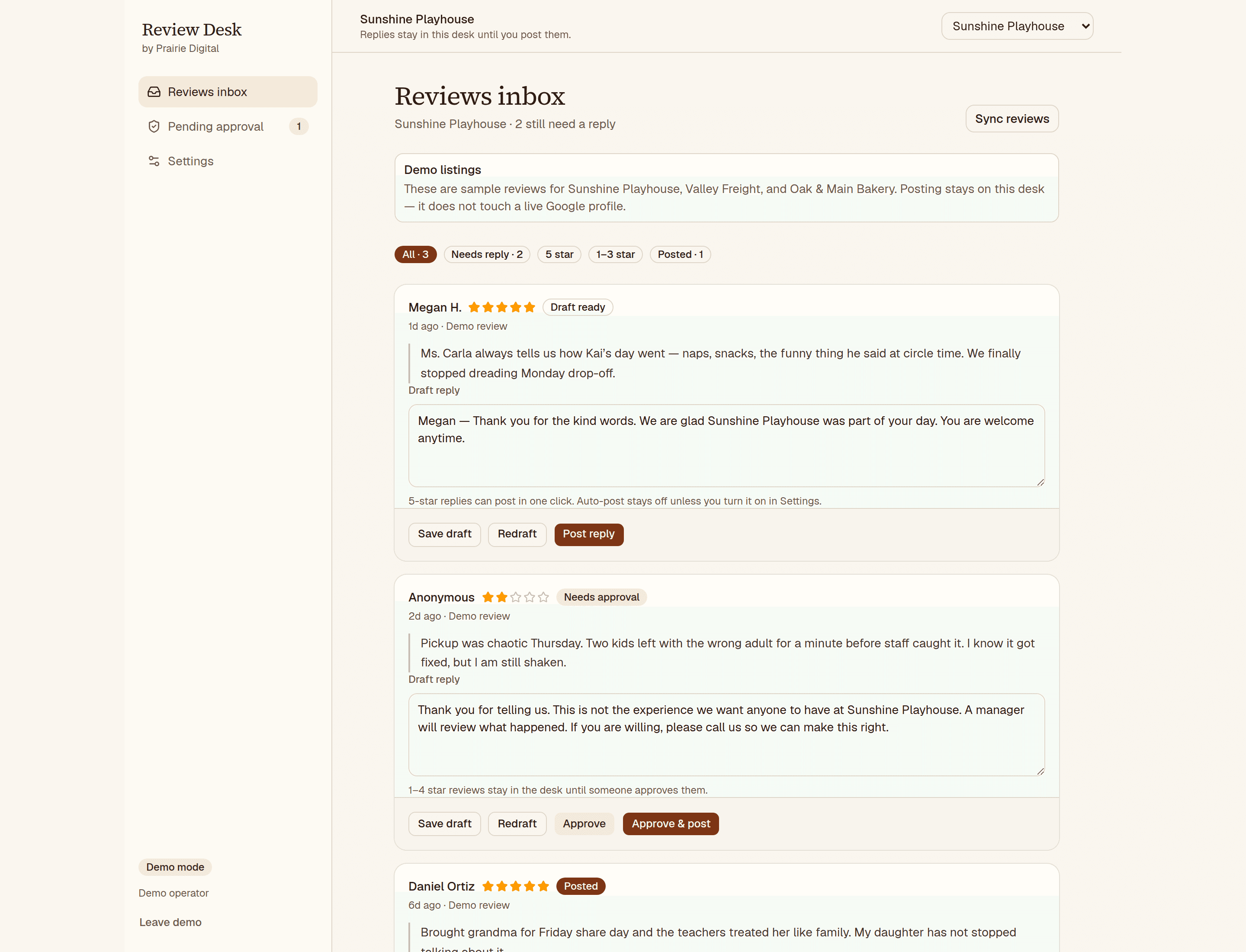
Review Desk inbox with drafted replies, filters, and approve-first actions
The inbox: drafted replies, star filters, and one-click post for 5★. 1–3★ stay here until someone approves. Open the live desk
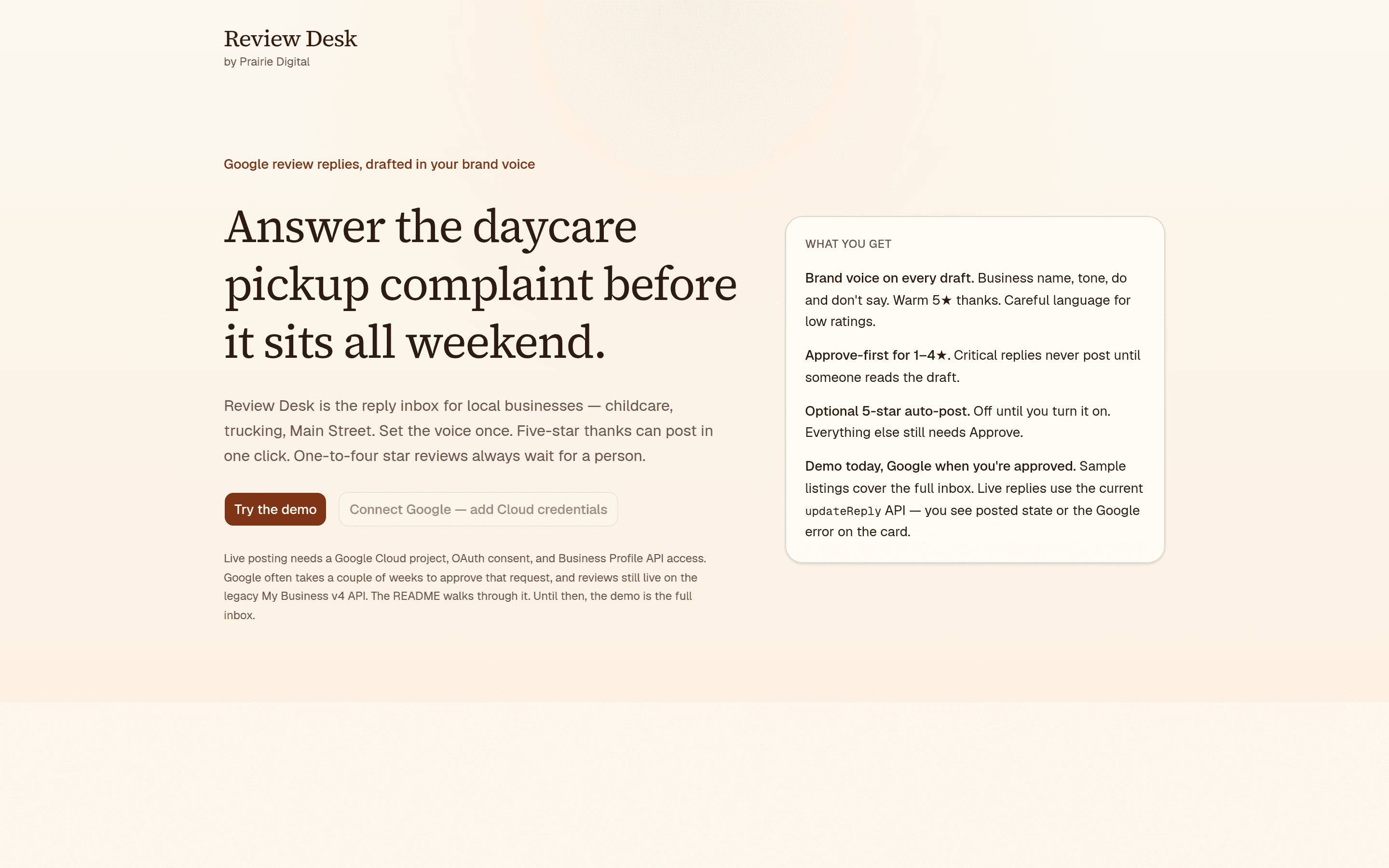
Review Desk landing — Google review replies drafted in your brand voice
The desk landing. Try the demo without connecting Google. Open the live desk
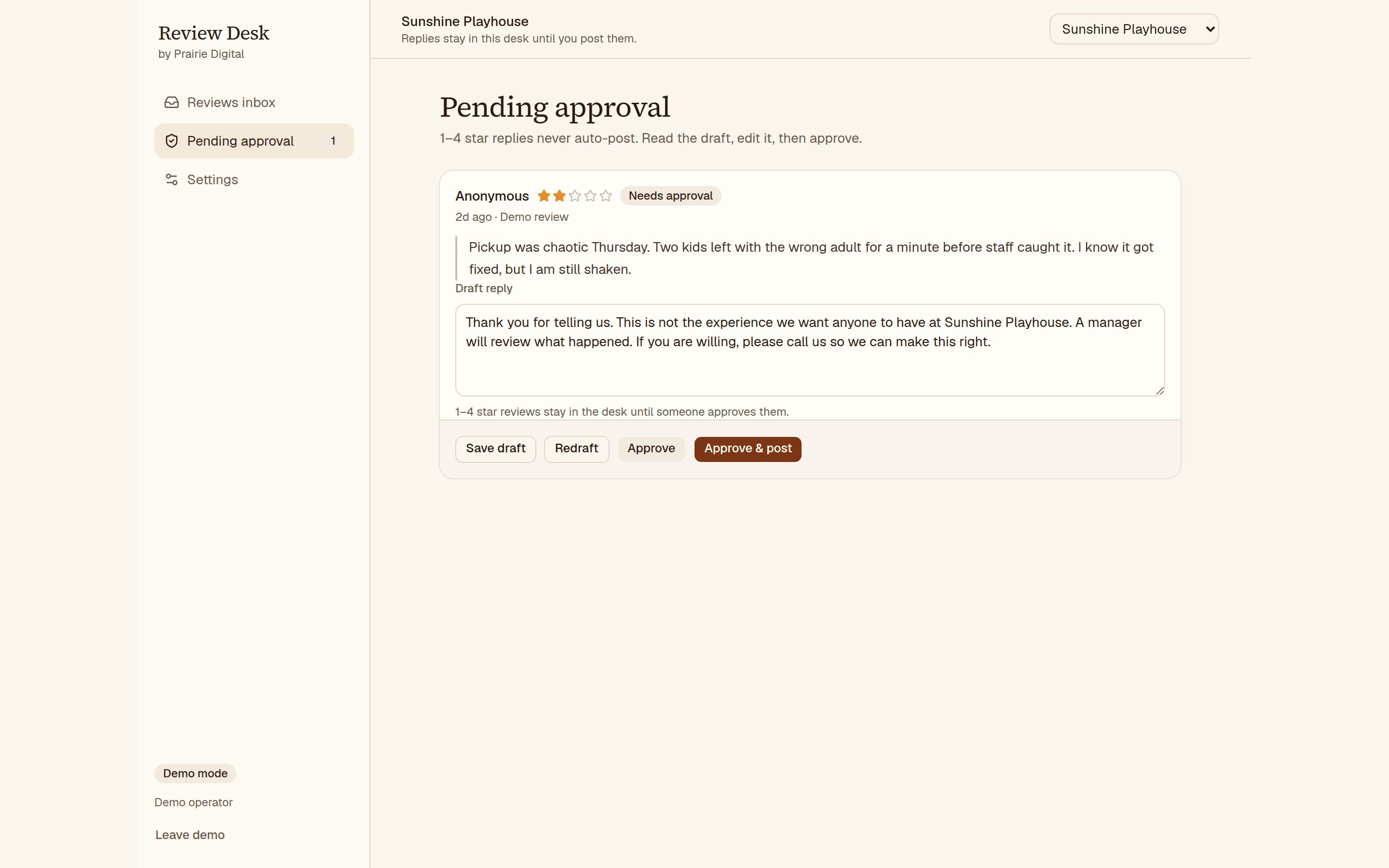
Review Desk pending approval for a low-star review that cannot auto-post
Pending approval. Low-star drafts never auto-post. Open the live desk
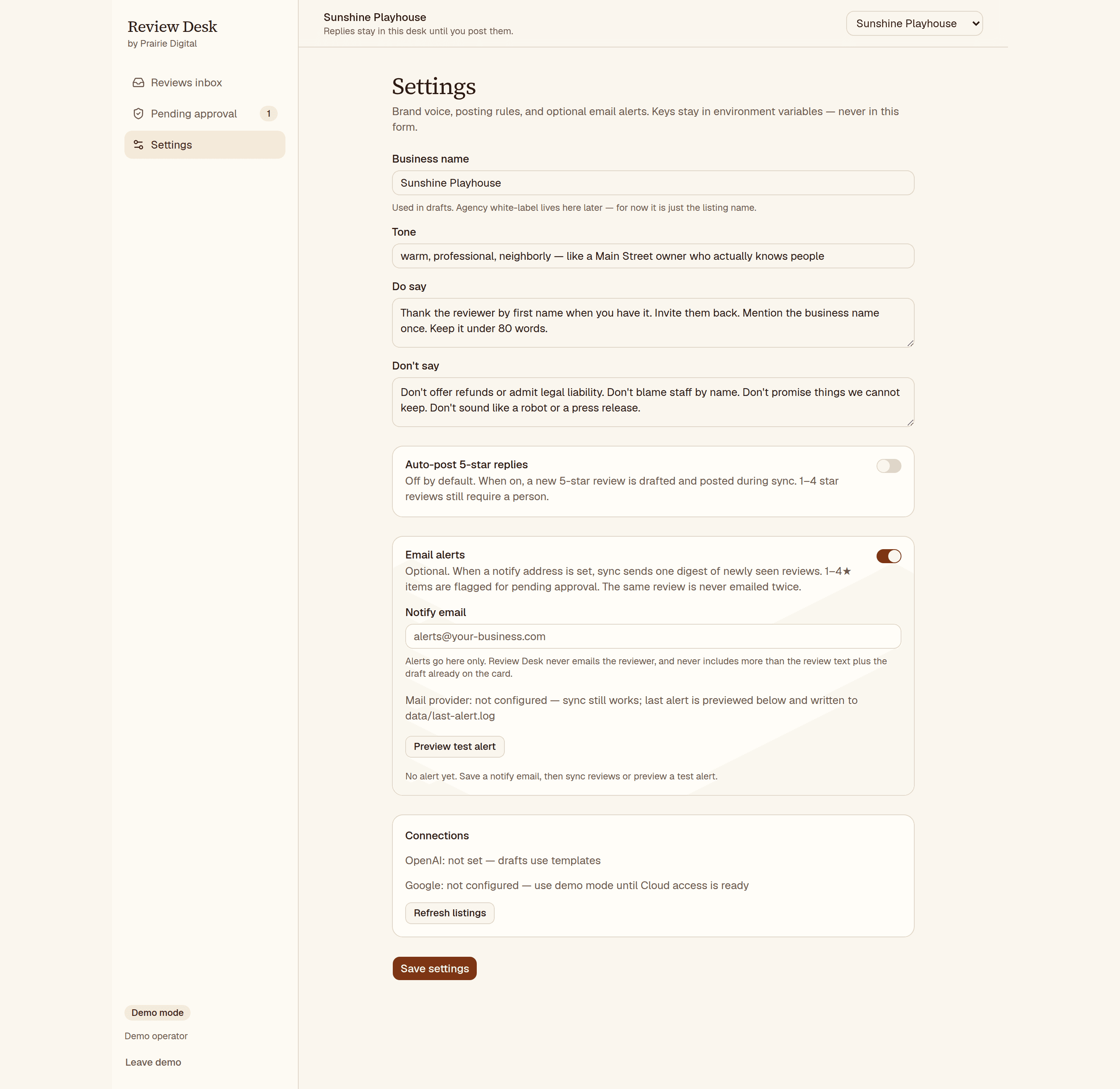
Review Desk settings — brand voice, do and don’t say, and 5-star auto-post off by default
Settings: brand voice, do and don’t say, and 5★ auto-post — off unless you turn it on. Open the live desk
Get a quoteBook a call